

 Português (Brasil)
 Español
 Français
 Deutsch
 Italiano
 Nederlands
 Svenska
 Srpski (latinica)
 日本語
 한국어
 简体中文
 हिन्दी
 Bahasa Indonesia
 Bahasa Melayu
 العربية
 עברית
Minecraft Modpacks to Play with Friends: 2026 Guide
See how to choose Minecraft modpacks by play style, install them with Fabric, NeoForge or Forge, and bring the finished pack to a server with friends.
· 6 min read
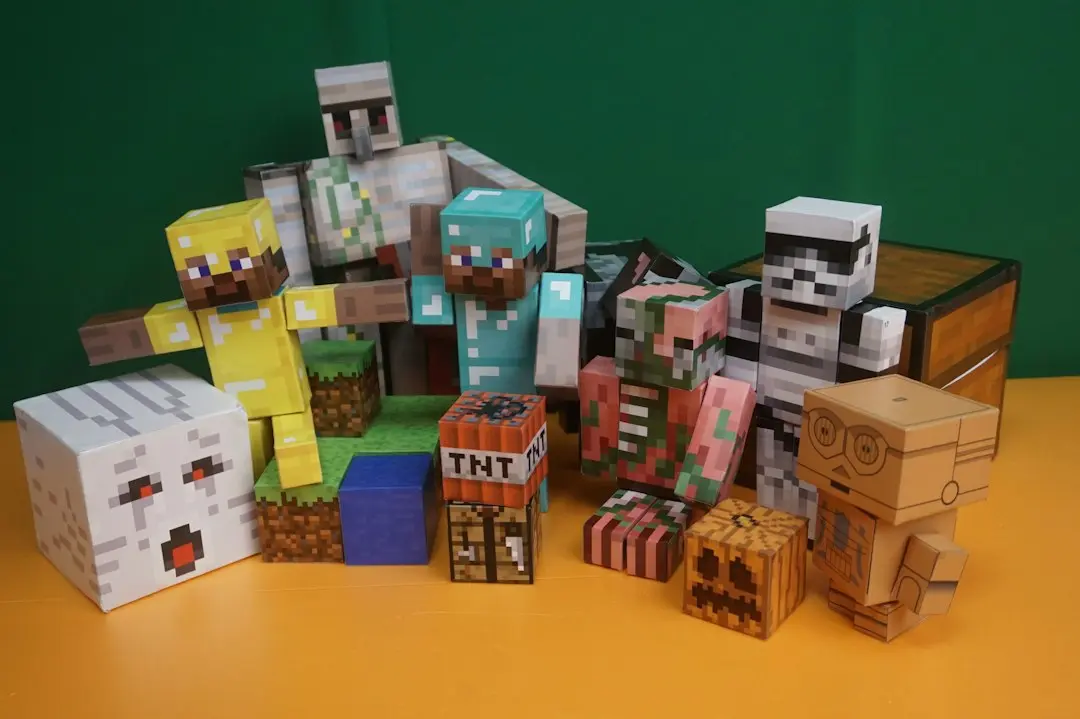
Minecraft modpacks to play with friends: 2026 guide
Getting friends together on a Minecraft server is easy. The hard part is having everyone play exactly the same thing: each person has a different mods folder, the game crashes on the loading screen, and the group spends the night on Discord trying to figure out which mod is fighting with which. That's exactly the problem a modpack solves.
In this guide we look at the opposite path from the loose-mods tutorial: instead of building the list by hand, you choose a ready-made pack, install it with the right loader (Fabric, NeoForge, or Forge), and take the same configuration to the server. At the end there are lists of packs by playstyle, commands to start the server, and the most common errors.
What a modpack solves (and where it gets complicated)
A modpack is a collection of mods, configuration files, and sometimes a starting world, assembled and tested by someone else. You install the entire pack with the versions the author confirmed work together. In practice, this means:
- Less time racking your brain: no more hunting for 150 mutually compatible mods.
- Same experience for the group: client and server use the same list.
- Thought-out progression: adventure and automation packs usually come with adjusted recipes and quests.
The flip side: a big pack is heavy. Some require 6 GB or more of RAM just for the client, and the server needs extra headroom. Before choosing, look at the pack's page on CurseForge or Modrinth and read the requirements tab — it tells you which Minecraft version and which loader the pack uses.
Fabric, NeoForge, or Forge: which one the pack uses
You don't choose the loader: the pack chooses for you. What matters is not mixing them.
- Fabric is lightweight and quick to update. Many performance and creature packs (such as Cobblemon) use Fabric.
- NeoForge inherited much of the Forge ecosystem and is the basis for many modern adventure and automation packs.
- Forge still appears in old packs and in large projects that haven't migrated.
Golden rule: if the pack is Fabric, the server is Fabric. Installing NeoForge on a Fabric pack is the fastest way to see a crash on the first connection.
A note on versions: Java Edition is on the 26.3 line (with 26.4 in snapshots), and several mods already publish builds for 26.3. Large modpacks, however, tend to stay on earlier versions for a while, such as 1.21.1, because migrating hundreds of mods takes months. If the pack the group wants is on 1.21.1, the server must also be on 1.21.1.
Choose the pack based on the group's playstyle
Before you start downloading, answer: does the group want to build, explore, automate, or suffer? The categories below help you filter.
Survival with "vanilla+"
For those who want the usual Minecraft, just with more biomes, mobs, structures, and quality of life. It's the easiest category to convince a mixed group. Well-known community examples: the Better MC line and "vanilla enhanced" packs.
Adventure and RPG
Quests, classes, bosses, and gear progression. Good for groups that like playing with objectives and organizing into parties. They tend to be heavy and require more RAM on the client.
Automation and creativity
Packs based on Create or pure technology, where the goal is to build factories and production lines. Here the group needs to coordinate space: a poorly planned factory takes up chunks and weighs on the server.
Creature collection
The Cobblemon is an open-source mod that adds a Pokémon-inspired adventure inside Minecraft, and there are several packs built on top of it (such as Cobbleverse, which runs on 1.21.1 with Fabric). Great for groups that like collecting, trading, and battling.
Hard survival
Challenge packs, with aggressive mobs, restricted crafting, and punishing death. RLCraft is the best-known name in this crowd. Fun in a group, but only if everyone is okay with losing progress.
How to install the modpack on PC
The safest path is to use a launcher that already manages separate instances — the CurseForge launcher or the Modrinth App. The steps are similar in both:
- Install the launcher and log in with your Microsoft account.
- Search for the pack by name and check the version and loader on the page.
- Click install and let the launcher download the files (large packs exceed 300 MB).
- Adjust the instance's RAM before opening the game — in large packs, 4 GB is the minimum and 6 GB is comfortable.
- Start it from the launcher. If the pack has quests, the menu appears inside the world.
If the author provides a .mrpack or .zip file, you can also import it directly on the instances screen. Never extract the pack into your main Minecraft installation: it will overwrite files and you'll lose vanilla.
How to put the modpack on the server
Here's the point that trips up groups the most. A modded server is not a vanilla server with mods thrown into the folder — it needs the same loader and the same mods as the client.
- Download the server pack on the modpack page. Many authors publish a separate file just for the server, already without client-only mods (shaders, interface mods).
- Upload this pack to the server and check the Minecraft version and loader specified by the author.
- Accept the EULA and adjust the memory before starting.
# start.sh de exemplo para um servidor modado
java -Xms3G -Xmx6G -XX:+UseG1GC -jar server.jar nogui
# trecho de server.properties
online-mode=true
max-players=10
view-distance=8
simulation-distance=6Downloading view-distance and simulation-distance is the most effective adjustment in heavy packs: it reduces CPU load without changing how the game feels for the group.
- If the pack doesn't have a server pack, copy the
modsfolder from the client to the server and remove the mods that are client-only. The author usually lists which ones in the description. - Give your friends the server address and, if possible, the same
.mrpackfile — that way no one gets the version wrong.
A practical detail: hosting at home works, but it requires port forwarding and the PC to be on. If you want a server that comes up in less than a minute, with a ready-made subdomain and automatic backups, you can run the pack on hourly hosting like Mine Hour, choosing the pack version and loader when creating it.
Extra mods that almost every group approves of
Once the pack is stable, three categories greatly improve life in a group:
- Map and minimap: helps you avoid getting lost and mark your team's bases.
- Recipe viewer (JEI or REI): essential in packs with hundreds of new items.
- Base protection: avoids the classic "who took my diamond". Automation packs usually include claim and team mods.
Avoid the temptation to stack performance mods on top of a closed pack: it already comes optimized, and adding Sodium or Lithium on top only works if the pack is compatible with that version and that loader.
Common problems and how to fix them
- Crash on loading: it's almost always a mod with the wrong version or a different loader between client and server.
- "Incompatible mod set": some mod requires a dependency that isn't in the folder. The log says the exact name.
- A friend joins and is kicked shortly afterward: the client mods don't match the server's — usually a client-only mod installed on the server.
- Server slow with few players: increase the RAM, reduce
simulation-distanceand check whether any chunk is loaded too heavily. - World stuck after updating the pack: never update without a backup. Large packs change IDs and recipes between versions.
Conclusion
A good modpack is one the whole group can install without arguing. Start with a "vanilla+" pack to test the group's enthusiasm, bring up the server on the same version and the same loader as the pack, and keep automatic backups on. If the group likes it, then it's worth moving on to a heavier adventure or automation pack — always checking the official page before downloading. And if the idea is to play only on weekends, hosting that pauses when everyone leaves avoids paying for idle hours.
Sources
- 7 best Minecraft modpacks to play in 2026 – TechTudo
- Popular modpacks to play with friends – Blog Vitt Host
- How to install modpacks in Minecraft (Modrinth .mrpack and CurseForge) – DromorCraft
- Cobblemon guide for Minecraft (2026) – Minecraft.How
- How to set up a Cobbleverse server – LIZARION
- Minecraft 26.4 Snapshot 8 – Minecraft.net
More posts
 Building and survival games to play with friendsSeven building and survival games to play with friends: what each one does best, how many players they support, and how to keep the world online without depending on the host.
 Minecraft server to play with friends: 2026 guideStep-by-step guide to creating a Minecraft server and playing with friends: Java vs Bedrock, RAM, whitelist, invites, crossplay on mobile and common errors.
 Games to play with friends: 12 co-op and Minecraft-like optionsList of games to play with friends: online and local co-op, Minecraft-like sandboxes, and what each one does best for your group.
 Multiple worlds on the same Minecraft server: a practical guideLearn how to run lobby, parkour, minigames and adventure in separate worlds on the same Minecraft server, keeping maps, seeds and datapacks in the right place.